We Are Creative Design Agency

Lorem ipsum dolor sit amet, consectetur adipisicing elit. Illum, fuga, consectetur sequi consequuntur nisi placeat ullam maiores perferendis. Quod, nihil reiciendis saepe optio libero minus et beatae ipsam reprehenderit sequi.

Find Out More Purchase Theme

Our Services

Lovely Design

Lorem ipsum dolor sit amet, consectetur adipiscing elit. Praesent feugiat tellus eget libero pretium, sollicitudin feugiat libero.

Read More

Great Concept

Lorem ipsum dolor sit amet, consectetur adipiscing elit. Praesent feugiat tellus eget libero pretium, sollicitudin feugiat libero.

Read More

Development

Lorem ipsum dolor sit amet, consectetur adipiscing elit. Praesent feugiat tellus eget libero pretium, sollicitudin feugiat libero.

Read More

User Friendly

Lorem ipsum dolor sit amet, consectetur adipiscing elit. Praesent feugiat tellus eget libero pretium, sollicitudin feugiat libero.

Read More

Recent Work

Thursday, May 7, 2015

Evernote Announces new Pricing Levels and Features (still has free version)


Evernote is my go-to organizing tool. I use it for lesson plans, lesson resources, project planning and tracking, client information, blog ideas, and personal stuff like important documents, photos and more. I pay for the Premium version because I wanted the premium features and believe that it is worth every penny. Evernote is an absolutely amazing tool that keeps getting better.

Introducing Evernote Plus and the new Evernote Premium

Evernote recently announced new pricing levels and features. The best part is the less expensive middle level gives features that used to be part of the premium level. Current premium users were moved to the new premium level. There is still a free version, so don't worry.

blogimage

Evernote Basic - free - can install on multiple devices, supports up to 60MB in monthly uploads and 25MB individual note sizes. 

Evernote Plus (new) - $2.99/ month ($24.99 per year) - 1GB montly uploads, individual notes up to 50MB, offline access to notes on mobile apps, passcode lock of notes and ability to turn emails into notes in Evernote.

Evernote Premium (upgraded)  - $5.99/month ($49.99/year) - unlimited monthly uploads, individual notes up to 200MB each, presentation mode, search in Office documents and attachments, Chat, annotate PDFs, scan and digitize business cards, and more.

penultimate tiers illustrations


Evernote is an excellent app that is well worth the price. 

Go here to sign up for an Evernote Account.


Related:

Evernote for Education Resources

Examples of using Evernote as: teacher, student, admin

7 Key Skills for Employability


Last month, I published a post entitled "Important Skills Students Need for the Future that we need to help them learn"  in which I described what I, and other research, felt were the most important skills for students to learn to succeed in the future. It also showed that these same skills were important to employers for their employees to have.

Here is a nice poster showing 7 Key Skills for Employability. Google Apps, with the right assignments and coaching from the teachers, can be used to help students foster these skills through projects, collaboration, teamwork, research and writing.


Related:

Important Skills Students Need for the Future that we need to help them learn


-

Dell releases network appliance to provide Virtual Windows Desktops to Chromebooks


dell chromebook 11 march 2014

Chromebooks are amazing devices that are great for education. While they can do a lot, there are the occasional times when a user will need access to a Windows only application. Sometimes there are features or legacy apps that users need.

There are a variety of ways to allow this on a Chromebook: setting up Chrome Remote Desktop on a Windows desktop PC, or using server based systems such as VM Ware, Citrix and Ericom AccessNow to provide access.

My district uses Ericom AccessNow to provide access to Windows applications on Chromebooks. This includes running a virtual session of Internet Explorer for a few legacy systems that only run on IE. Simply login to the portal from any browser, and click on the application you want, and it launches and runs.

Dell has now entered the arena with the Dell Appliance for Wyse-vWorkspace product. It uses desktop virtualization to allow Chromebooks, and other devices, to access Windows desktop software. With this appliance, users can run Microsoft Windows Applications or a full Windows desktop through the Chromebooks browser. It can deliver Windows apps up to 350 devices and pricing is said to start at $180 per user for the hardware and license.

These solutions all cost money (except for Chrome Remote Desktop) but can save money in the long run by eliminating expensive Windows workstations (initial cost, support and upgrades, software deployment) with Chromebooks and Chromeboxes.


Related:

BYOD and Web Based Apps, Hosted Apps


What can you do on a Chromebook? Pretty much everything.


-

Explore Madagascar with Google Street View


Map of madagascar country

Google has once again made an awesome place on the Earth available to anyone through Street View. Madagascar (not Mada-who-ha :-) ) is an 88 million year old island off the coast of Africa. It is an amazing place with amazing ecosystems. You can now take a virtual tour of the island with Street View in Google Maps.

Image result for madagascar

It's an amazing place to explore, especially with students. Many of them have probably seen the movie.

Read more HERE.


Emaze - beautiful web based presentation app


Emaze is a free, online presentation tool that is easy to use and has some beautiful features. You sign in, select one of their amazing templates, create your presentation, and share it. The presentations are created in HTML5 so they are available on any web-enabled device. Presentations can be traditional slides, videos or even 3D. You can create a presentation from scratch, or import a PowerPoint. When you import a PowerPoint file, it will ask you which Emaze theme you want to use and then it will apply that theme to the file.

They even have an offline viewer that you can use to be able to view your presentation and show it when you don't have an internet connection.

There is also a library of presentations that you can use and modify.

The free account is very good and you can upgrade to paid accounts for more features. They also work with school districts and colleges on volume licensing for premium accounts.

It's a nice alternative to other products like PowerPoint and Google Slides with some different visual features.


Here's a video about it:


Related:

Prezi - the zooming presentation editor

PowToon Edu - create awesome presentations and animated videos

Wednesday, May 6, 2015

Google Classroom Mobile Apps get even more Great Features!


Google Classroom is Google's learning management system, allowing teachers and students to share assignments and communicate online.

It is easy to use and works great, but there were some features teachers were asking for. Well, Google listened!

Google announced some great additional features last month and has just announced some new features for the mobile apps:

Teachers can now create and edit assignments, make copies of attachments and attach photos to assignments as well as grade assignments on their mobile devices. You can even use your mobile device to take a picture and create an assignment from it (paper, whiteboard, object, etc). 

These new features make Google Classroom even more useful via mobile apps and can help teachers get more done and be more efficient.


Related:

Tuesday, May 5, 2015

Info and Data on the Use of Tablets in the Classroom


There have been many debates on how technology influences education. Nowadays, teachers have a wide range of tools to use in class. But one of the most commonly utilized tools to make the learning process more efficient, are tablets. Today there are 8 million iPads being used in the K-12 classroom, as Apple’s share has been 94% of the tablet market. While this phenomenon demonstrates that teachers and administrators are forward-looking, it also has its downsides. In this respect, education resource website Early Childhood Education Degrees has developed this infographic showing how tablets are used today. Check it out!


Source: Early-Childhood-Education-Degrees.com/


I'm a huge proponent of Chromebooks because they can do what tablets can do, for the most part, along with being easier to deploy and manage. Google has also built in that ease with their Google Play for Education tablets. 


Related:


-

Friday, May 1, 2015

Chromebook Inventory Tool - must have for GAFE Admins


Chromebooks are beyond popular in schools and the Google Admin Console provides a lot of great features and information. But, one thing that is missing is a way to get a full inventory of all of your Chromebooks, with information such as OS version, MAC Address, SN and more.

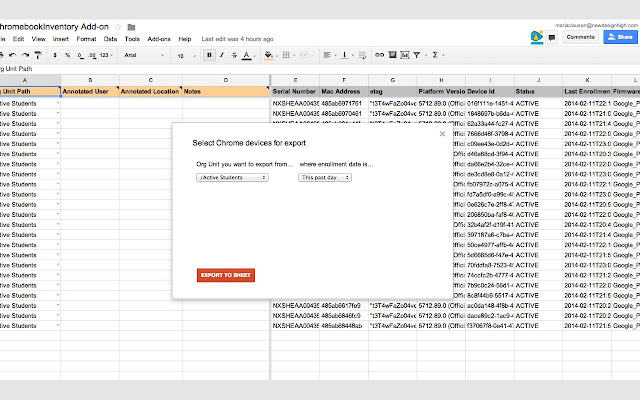
Andrew Stillman to the rescue - he has created the Chromebook Inventory Tool, a free add-on to Google Sheets that works with a Google Apps Super Admin account. The tool allows you to export and bulk update the information of your managed Chrome devices using Google Sheets.


FEATURES
  • Export your entire inventory, or just an OU of Chrome devices into a Google Sheet, including all of the following metadata: etag, Org Unit Path, Serial Number, Platform Version, Device Id, Status, Last Enrollment Time, Firmware Version, Last Sync, OS Version, Boot Mode, Annotated Location', Notes, and Annotated User
  • Device export options include the ability to filter by enrollment date (Past hour, Past day, Past week, or Between specific dates).
  • Make edits to "Annotated Location","Notes", and "Annotated User" and bulk update the devices in your Chrome console directly from this spreadsheet.
It's extremely useful to GAFE admins and came in handy for us when we used it and found that many of our Chromebooks had not updated the OS (because they were never shut down, only logged off). 

It's easy to use and the site has excellent instructions. 


Related:

Google for Education Resources (Google Apps, Chromebooks and more)

Chromebook Deployment Help Resources

Wednesday, April 29, 2015

Tech & Learning Live @ Boston: Join the Livestream Experience for free!

Tech & Learning Live @ Boston: Join the Livestream Experience!

Join in for FREE from your home or office.


Tech & Learning's live broadcast stream will be direct from Tech & Learning Live @ Boston this Friday, May 1st. Join this preeminent group of education leaders as they tackle some of the most pressing, and promising, issues for today's schools. Watch the sessions as they happen and even participate with a live chat.
The schedule includes:

8:00 to 9:10  ET Opening Keynote w. Jennie Magiera:Beware the Transformation Trap: Making Meaningful Change
9:20 to 10:20 am ETStudent Agency: Beyond Genius Hour
10:30 am - 11:30 am ETSeeing Results
2:50 pm - 3:50 pm ETIT and Curriculum: From an Uneasy Partnership to a Fruitful Marriage

>>View the entire program here. 

All virtual attendees will receive a digital certificate confirming attendance.


.  


Keynote Speaker

Jennie Magiera
Digital Learning Coordinator, Academy for Urban School Leadership, Chicago, IL
 

Stay Up to Date


Join The Conversation


Just use the hashtag #tltechlive to join the conversation on the Tech & Learning Live Social Media Hub

GAFE and Chromebooks Admin Console Best Practices and Tips


Updated March 2017

Google Apps for Education and Chromebooks are very popular with education for many reasons, one of which is the ease of management and deployment. The Admin Console allows staff to manage apps, user settings, devices settings and much more. Here are some tips and best practices for settings in the Admin Console.

The Admin Console is relatively easy to use, although some settings can be hard to find. Remember to use the help features by clicking on the question marks throughout the console.


The icons on the console can be moved and arranged via drag-and-drop so you can put the ones you use most up front. Typically, Users, Device Management, and Apps are the most used. 

Below are some of the main tips and settings to consider. Most of them are under Device Management. This is not a complete list, but one to help you get started. 


Admin Accounts: ("Admin Roles")
You can designate users at different levels of admin access. There are preset roles and you can create your own. You should have at least two Super-Admins in case one is out. Help Desk admin can only reset passwords for non-administrators and are good to have in each school. 

User Settings:
Organizational Units (set under Users) - you will want to have at least the following OUs setup: Admin, IT, Faculty, K-8 Students, High School students. This allows you to customize the settings for each one. K-8 students cannot use Google+, so you will want Google+ turned off for them. You can also turn off outside email for them. 

Under Apps, Click on Additional Google Services, click on the three vertical dots next to Google+ and click Turn Off or On for some Organizations and make sure it is off for K-8. 

Device Management > Chrome Management > User Settings
These settings apply to the Chrome Browser also (when a user logs into it)

Force-Installed Apps and Extensions: you can push out apps and extensions to all users. There are a few I recommend, including Office Editing. Here is a list. 

Allow or Block All Apps and Extensions: you can either allow users to install any apps except the ones that you block, or block all apps except the ones that you allow. It is a local decision on how to manage this. Blocking all means your IT staff have to handle requests from staff. Allowing all means that some students might find some unsavory apps to install, but you can block them as you find them. 

If you want to allow all except the ones you block, here is a list of some that you should block. 

Allowed Apps and Extensions: create a list here if you are blocking users from installing them. Here are some lists of app recommendations. 

Make sure you are saving Browser History if you want to track what users are doing. 

I recommend turning on Safe Browsing, but that is a local decision.

You can also set up web pages to auto-load when a user logs in. Most schools set it up so that the district or school home page loads. 

Another nice feature is the ability to block websites by user OU. You can enter as many URLs as you like. This means that those users cannot get to the site, even if it is allowed through your filter. This can be useful for more granular control. 

You can also push out managed bookmarks, which is a great feature. You can push the district homepage, Google Apps page, student SIS system, etc for quick access by your users. 

Turning off Outside Email for K-8:


Device Management > Chrome Management > Device Settings:

Definitely turn on Forced Re-Enrollment. This will prevent users from factory resetting the Chromebooks and then taking them out of your domain. Even if they do factory reset the device, it will force them to re-enroll it in your domain and not allow them to use it.

Guest Mode - allows a user to access the Chromebook without an account. I recommend against this if you have GAFE accounts for all of your users.

Incognito Mode - turn this off for students also.

Sign-In Restriction: this allows you to restrict which accounts can be used to login to a Chromebook. Most schools do set this to restrict logins to their GAFE accounts only. It is one more feature that makes Chromebooks less attractive to thieves.

Kiosk Apps - this is where you would install testing apps for PARCC and SBAC. Kiosk apps run without a user needing to login to the Chromebook itself.

Auto-Updates - allow this unless you have concerns about a new version of Chrome OS causing an issue with an app. For example, SBAC is only setup for Chrome OS 41, so while auto updates are turned on, you can limit the version to 41 and it won't update to the latest version which is 42. 

Device Reporting - enable this and user tracking so that you can see the device info when you select a device. You can also see who the last user was, which can be helpful in tracking a missing device. 

Do Not Erase Local User Data - this will keep the user account on the Chromebook which speeds up logins. Shared Chromebooks can support a lot of users (I've seen up to 20 different users on a single Chromebook). 

Disabled Device Return Instructions - if you disable a device, it will show a message on the screen asking for it to be returned. You put in the address and contact info. 


Device Management>Network:
Network Settings - you can, and should, put in your network settings here so that the Chromebooks automatically connect to your WiFi. You can even put in a hidden SSID and all of the security and passwords here. 


Hopefully you find these tips useful.


Related:

Google for Education Resources (Google Apps, Chromebooks and more)

Chromebook Deployment Help Resources

Tips for Troubleshooting Chromebooks and some typical issues

Note: I oversaw the successful deployment of over 11,000 Chromebooks and 26,000 GAFE user accounts in my home district and have assisted over 300 school districts successfully deploy GAFE and Chromebooks. I am also a Google Certified Administrator and Deployment Specialist. I use lessons learned from my own deployment experience, research and conversations with other administrators. Contact me if you would like help with deployment, setup or training in Google Apps and/or Chromebooks.


-

Monday, April 27, 2015

SmallPDF - free, online PDF Tools - compress, convert, split and more

PDFs are one of the most popular document formats, mainly because you can view them easily on any device. Sometimes you need to modify them or convert them to other formats depending on your usage.

SmallPDF is a free, online service that gives you the ability to compress, convert, split, merge, modify, (and more) PDF files.

It's very easy to use. Select the function you want to perform from the home page and then just drag and drop your files. It's that easy. It supports converting images to PDF and PDF to Office and Office to PDF, along with much more.

You can even send them a PDF and they will print it and mail it to an address for you.

Here is a list of all of the functions.

Compress PDF
JPG to PDF
PDF to JPG
PDF to Word
PDF to Excel
PDF to PPT
Word to PDF
Excel to PDF
PPT to PDF
Merge PDF
Split PDF
Unlock PDF
Send letter


Here are some More Resources for working with PDF Files  (lots here, plus more listed below)

PDF Converter - free online PDF conversion

Lots of PDF resources - print, markup, convert and more

PDFBinder - simple tool to merge PDF documents into one

BabyPDF - Edit PDF documents for free

Crocodoc - markup PDF files for free

Fill Any PDF form - fill out, sign and send forms


-

Internet Safety and Information - what data do the big companies collect?


Technology is a wonderful thing. It lets us connect, explore, learn and create. However, there are some drawbacks and everyone is concerned about their data and what the big tech companies collect about them.

I'm a huge user and proponent of Google Apps, but I'm also careful with what I put online anywhere.

This infographic shows some of the data and information that Google, Facebook and Apple have and collect about their users. It is a good resource to use when teaching digital literacy and internet safety.


Apple, Google and Facebook Tracking.
The Loss of Privacy from Google Apple and Facebook
Compliments of BackgroundChecks.org


More resources:

10 Tech Skills Every Student Should Have

How to Evaluate Web Resources


Internet Safety Resources:

Internet Safety Resources - help students stay safe online

Discovery Education Web 20.11 - great internet safety resources.

Google Good to Know - online safety and data info

Google Family Safety Center - help promote safety online.

Web safety resource

Google Plus now open to Teens, with safety features

PBS Teachers - Excellent Resources for Educators - has resources on internet safety

Top 10 Resources from Discovery Education - all free - internet safety lessons too


-

Friday, April 24, 2015

Guest Post - How to Create Stunning Visual Aids for your Lessons


It is a challenge to seize children’s attention and not to let it go. Some teachers experience great difficulties in keeping students engaged and involved in the educational process due to objective reasons. Luckily, there exist some tricks to help resourceful teachers, one of them being visual aids. Looking at bright and colorful images, students are more likely to digest the material without boredom and remember it afterwards. But why are visual aids so effective and how to create them?
First of all, visual aids are helpful, because they show the data visually. Some facts, connections and outcomes are much easier to understand when they are represented as a picture. For example, some statistics, shown as a diagram will be much more winning than its detailed descriptions in words. Then, as visual images have the sense of modernity, they easily grab children’s attention for some time. Thus, they are useful for highlighting some essential points and setting true accents. And finally, visual aids and pictures boost children’s creativity. By looking at something beautiful and challenging, by perceiving the right way of data organization, students can get inspired and come up with new and outstanding ideas.
There are three most popular types of visual aids:
  1. Sheets to hand out. They are pieces of paper with different tasks for students: from simple word games to sophisticated and quizzes and puzzles. Usually you are welcome to print them at school, if the head teacher supports the idea of modern teaching.


Such sheets look very winning if they contain bright images, doodles, cartoons, drawings and any other innovative ideas. They serve different purposes like encouraging students to think over some details or discuss them, check students’ knowledge or let them rest with the benefit for their brains. A lot of websites offers resourceful teachers the opportunities to download and print the material. Here are just some of them:
busyteacher.org
britishcouncil.org


  1. Posters and pictures. If you want to explain new material with the help of some visual images, illustrate your words with bright and colorful pictures.

Usually you use Photoshop to create a legible and eye-pleasing poster, but you can try its free and less sophisticated alternative Photoscape.


Remember that in creating posters bright shapes and arrows look especially great. As well as text elements, which must be precise, short and only about the core point.


  1. Video sequences. But sometimes even picture images are not enough to convey the idea. In this case you can turn to videos
    If you have some photos to illustrate your words, just make a slideshow of them and play in the background to illustrate your words. For this purpose, you can use a tool like Freemake Video Converter as it allows not only to make a slideshow in one click, but also convert it to any – even the most rare – format.

Or make a cartoon with the help of online tools like GoAnimate. This approach requires much more mental efforts and time. But if you want to create a cartoon for preschool children, this visual tool will be very useful.


Overall, the use of certain visual tools depends on your purpose, creative inner-sources and opportunities. Anyway you should call all your creativity and resourcefulness to make your lessons outstanding and interesting for students, even with the help of visual aids, because even in this case the educator’s personality is what is reflected in all the aids.

Author’s Bio
Terry Smith is a former IT teacher from Geneva. Now he is a freelance developer and blogger. Terry loves sharing his expertise on popular teaching software, IT trends, and digital technology. Follow Terry on Twitter.


-

Our Blog

55 Cups
Average weekly coffee drank
9000 Lines
Average weekly lines of code
400 Customers
Average yearly happy clients

Our Team

Tim Malkovic
CEO
David Bell
Creative Designer
Eve Stinger
Sales Manager
Will Peters
Developer

Contact

Talk to us

Lorem ipsum dolor sit amet, consectetur adipisicing elit. Dolores iusto fugit esse soluta quae debitis quibusdam harum voluptatem, maxime, aliquam sequi. Tempora ipsum magni unde velit corporis fuga, necessitatibus blanditiis.

Address:

9983 City name, Street name, 232 Apartment C

Work Time:

Monday - Friday from 9am to 5pm

Phone:

595 12 34 567