We Are Creative Design Agency

Lorem ipsum dolor sit amet, consectetur adipisicing elit. Illum, fuga, consectetur sequi consequuntur nisi placeat ullam maiores perferendis. Quod, nihil reiciendis saepe optio libero minus et beatae ipsam reprehenderit sequi.

Find Out More Purchase Theme

Our Services

Lovely Design

Lorem ipsum dolor sit amet, consectetur adipiscing elit. Praesent feugiat tellus eget libero pretium, sollicitudin feugiat libero.

Read More

Great Concept

Lorem ipsum dolor sit amet, consectetur adipiscing elit. Praesent feugiat tellus eget libero pretium, sollicitudin feugiat libero.

Read More

Development

Lorem ipsum dolor sit amet, consectetur adipiscing elit. Praesent feugiat tellus eget libero pretium, sollicitudin feugiat libero.

Read More

User Friendly

Lorem ipsum dolor sit amet, consectetur adipiscing elit. Praesent feugiat tellus eget libero pretium, sollicitudin feugiat libero.

Read More

Recent Work

Showing posts with label g suite. Show all posts

Wednesday, November 21, 2018

Google for Education Best Practices Resources and Tips


Google Apps for Education and Chromebooks are very popular with education for many reasons, one of which is the ease of management and deployment. The Admin Console allows staff to manage apps, user settings, devices settings and much more. Here are some tips and best practices for settings in the Admin Console.

The Admin Console is relatively easy to use, although some settings can be hard to find. Remember to use the help features by clicking on the question marks throughout the console.


The icons on the console can be moved and arranged via drag-and-drop so you can put the ones you use most up front. Typically, Users, Device Management, and Apps are the most used. 

Here are some excellent resources:
Outside of the Admin Console settings, here are some important things to consider:
  • Backup of data outside of G Suite? There are solutions available to backup your G Suite data. You should also make sure you have Vault enabled for your domain - https://support.google.com/vault/answer/2462365?hl=en 
  • Acceptable use policies for G Suite, internet, devices, etc. Lots of schools post theirs online. Take a look at them and make sure you have a strong policy in place. 
  • Training and Professional Development - users (staff, teachers, and students) need training and PD on the proper and effective use of technology, including G Suite and Chromebooks. Look at some of the resources from Google, and find a good PD partner to assist. You can also push out this free add-on from Google that gives in-app support to your users: https://chrome.google.com/webstore/detail/g-suite-training/idkloemkmldbemijiamdiolojbffnjlh?hl=en 


Below are some of the main tips and settings to consider. Most of them are under Device Management. This is not a complete list, but one to help you get started. 

Admin Accounts: ("Admin Roles")
You can designate users at different levels of admin access. There are preset roles and you can create your own. You should have at least two Super-Admins in case one is out. Help Desk admin can only reset passwords for non-administrators and are good to have in each school. 

User Settings:
Organizational Units (set under Users) - you will want to have at least the following OUs setup: Admin, IT, Faculty, K-8 Students, High School students. This allows you to customize the settings for each one. K-8 students cannot use Google+, so you will want Google+ turned off for them. You can also turn off outside email for them. 

Under Apps, Click on Additional Google Services, click on the three vertical dots next to Google+ and click Turn Off or On for some Organizations and make sure it is off for K-8. 

Device Management > Chrome Management > User Settings
These settings apply to the Chrome Browser also (when a user logs into it)

Force-Installed Apps and Extensions: you can push out apps and extensions to all users. There are a few I recommend, including Office Editing. Here is a list. 

Allow or Block All Apps and Extensions: you can either allow users to install any apps except the ones that you block, or block all apps except the ones that you allow. It is a local decision on how to manage this. Blocking all means your IT staff have to handle requests from staff. Allowing all means that some students might find some unsavory apps to install, but you can block them as you find them. 

If you want to allow all except the ones you block, here is a list of some that you should block. 

Allowed Apps and Extensions: create a list here if you are blocking users from installing them. Here are some lists of app recommendations. 

Make sure you are saving Browser History if you want to track what users are doing. 

I recommend turning on Safe Browsing, but that is a local decision.

You can also set up web pages to auto-load when a user logs in. Most schools set it up so that the district or school home page loads. 

Another nice feature is the ability to block websites by user OU. You can enter as many URLs as you like. This means that those users cannot get to the site, even if it is allowed through your filter. This can be useful for more granular control. 

You can also push out managed bookmarks, which is a great feature. You can push the district homepage, Google Apps page, student SIS system, etc for quick access by your users. 

Turning off Outside Email for K-8:


Device Management > Chrome Management > Device Settings:

Definitely turn on Forced Re-Enrollment. This will prevent users from factory resetting the Chromebooks and then taking them out of your domain. Even if they do factory reset the device, it will force them to re-enroll it in your domain and not allow them to use it.

Guest Mode - allows a user to access the Chromebook without an account. I recommend against this if you have GAFE accounts for all of your users.

Incognito Mode - turn this off for students also.

Sign-In Restriction: this allows you to restrict which accounts can be used to login to a Chromebook. Most schools do set this to restrict logins to their GAFE accounts only. It is one more feature that makes Chromebooks less attractive to thieves.

Kiosk Apps - this is where you would install testing apps for PARCC and SBAC. Kiosk apps run without a user needing to login to the Chromebook itself.

Auto-Updates - allow this unless you have concerns about a new version of Chrome OS causing an issue with an app. For example, SBAC is only setup for Chrome OS 41, so while auto updates are turned on, you can limit the version to 41 and it won't update to the latest version which is 42. 

Device Reporting - enable this and user tracking so that you can see the device info when you select a device. You can also see who the last user was, which can be helpful in tracking a missing device. 

Do Not Erase Local User Data - this will keep the user account on the Chromebook which speeds up logins. Shared Chromebooks can support a lot of users (I've seen up to 20 different users on a single Chromebook). 

Disabled Device Return Instructions - if you disable a device, it will show a message on the screen asking for it to be returned. You put in the address and contact info. 

Device Management>Network:
Network Settings - you can, and should, put in your network settings here so that the Chromebooks automatically connect to your WiFi. You can even put in a hidden SSID and all of the security and passwords here. Apply to Devices, and then restrict to Chromebooks. 


Related:

Google for Education Resources (Google Apps, Chromebooks and more)


Note: I oversaw the successful deployment of over 11,000 Chromebooks and 26,000 G Suite user accounts in my home district as CIO and have assisted over 400 school districts to successfully deploy G Suite and Chromebooks. I am a Google Certified Administrator, Deployment Specialist, Success Manager, Trainer and Educator. 


-

Wednesday, May 9, 2018

Google I/O 2018 - big announcements from the opening keynote - very cool stuff!


#io2018


Google kicked off Google I/O 2018, their developer conference, yesterday, 5/8/18, with a keynote that had some amazing announcements in it. 

Here is a summary of them with links to more info on each one. I'm pretty excited for these. Many will be great for education, including news, accessibility and more. (Google for Education Resources)

Google

Google AI is the big topic of the day. AI is being implemented in pretty much everything Google does and there are some really amazing things being accomplished. https://ai.google/

color pop
  • Google Photos and AI https://www.blog.google/products/photos/take-action-sharing-editing/
    • 5B photos viewed every day
    • new feature - suggested actions - smart actions in context
    • share photos based on who is in photo
    • one tap to fix exposure/etc
    • recognize and convert photo of document to PDF!
    • auto color b&W photos
  • AI computing power
    • next gen TPU 3.0 pod for AI computing
    • liquid cooling now needed
    • over 100 petaflops (pod is 8x more powerful than last year)
phone calling fom the Google Assistant.png
Image result for google assistant
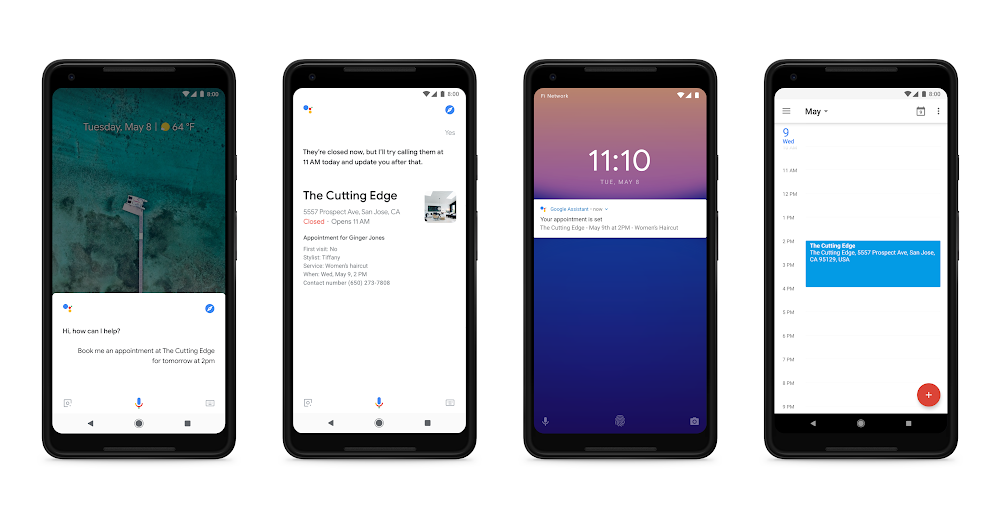
  • Google Assistant https://www.blog.google/products/assistant/io18/
    • https://assistant.google.com/ 
    • naturally conversational
    • there when you need it
    • easy to use
    • "Holly" is the voice
    • using AI (Wavenet) to create a more natural voice now
    • adding 6 new voices to Google Assistant
    • getting more voices for global 
    • John Legend coming as a voice of GA (later this year in different contexts)
    • more and more actions and features
    • works with smart TVs and Netflix
    • smart home devices
    • find your phone
    • on over 500 M devices
    • in most major car manufacturers
    • 30 languages, 80 countries by end of year
    • visually assistive (shows visuals as well as speaking to you)
    • understand social dynamics 
    • new ways to interact besides Hey Google, OK Google
    • Continued Conversation - coming weeks
      • ask for multiple things at once
      • lots of actions - sci fi!
    • "Pretty Please" - say please to get Google to do things - and Google responds with comment like "thanks for being polite" - great for teaching kids manners
    • Voice and Visual Assistance
      • Google Assistant normally voice, adding visuals
      • Visual - Smart Displays - LG, Lenovo and 1 other
      • integrates with Google Photos, GA, controlled by voice, watch videos and shows, YouTube and YT TV
      • show recipes
    • Mobile Phones 
      • immersive and interactive and proactive
      • shows images and info along with voice response
      • shows smart home controls
      • "order my usual from Starbucks"
      • more partners coming soon
      • proactive - in assistant and swipe up - reminders, day events, and other info right there
      • launching on Android in summer and iOS later this year
    • MAPs - GA coming to Google Maps this summer - send someone your ETA, do other actions while navigating
    • Phone calls
    • Google Duplex - AI, text to speech, natural language, deep learning https://ai.googleblog.com/2018/05/duplex-ai-system-for-natural-conversation.html

  • Digital Well Being
    • help you separate from your devices
    • people get FOMO (fear of missing out)
    • should have JOMO - joy of missing out
    • across all products and platforms
    • understand your habits
    • focus on what matters
    • switch off and wind down
    • find balance for your family
    • Android Dashboard
      • time spend on phone
      • times unlocking phone
      • notifications
      • apps used
    • YouTube - take a break reminders, notifications digest - this week
  • Family Link - manage kids screen time https://families.google.com/familylink/ 
Overview - News.gif
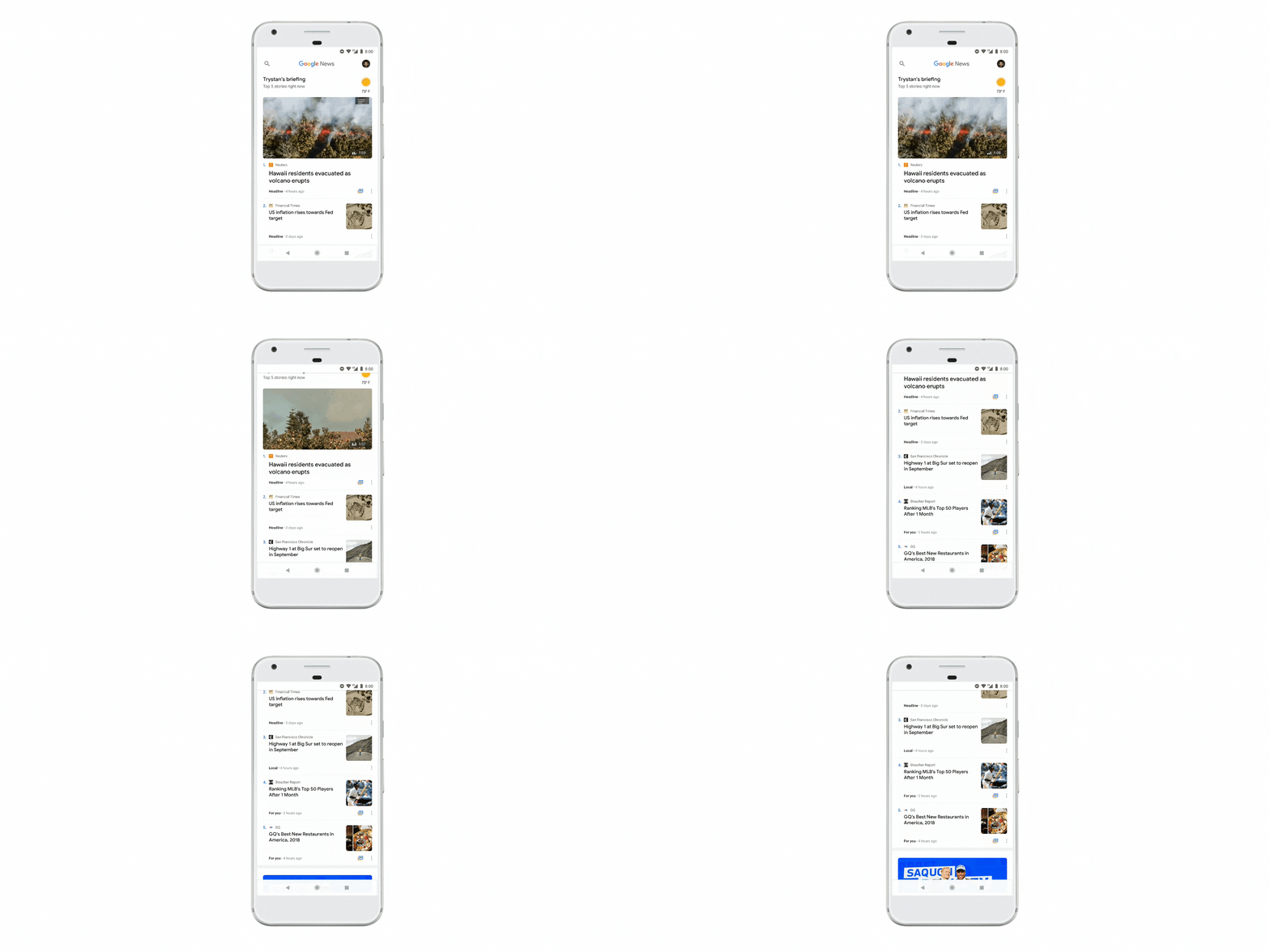
  • News https://www.blog.google/products/news/new-google-news-ai-meets-human-intelligence/
    • quality journalism
    • identify fake news
    • remove bad sources
    • using AI to find quality products
    • Google News
    • deeper insight and fuller perspective on topics
    • learns what you like
    • video news too
    • updated app
    • Google Material Theme - applied to all apps and for 3rd party apps
    • Newscasts - new format - preview of a story across different platform
    • Understand the full story
    • Full Coverage - complete picture of a story - how it's being reported across different sources and formats. Different context, opinions, fact checks, analysis.
    • Everyone has access to the same information
    • unfiltered coverage from a range of trusted sources
    • Enjoy and support the news sources you love
    • Subscribe with Google - use Google account to easily subscribe to publishers
    • rolling out on Android, iOS and web today
new system navigation
  • Android https://www.blog.google/products/android/android-p/
    • open, most popular OS in world
    • choice, innovation
    • 10 years old
    • smarter operating system
    • battery life is top concern for users
      • Android P - adaptive battery - uses on device machine learning to adapt to your usage patterns to only run certain apps, backup processes on smaller core, and save battery.
      • auto brightness based on current lighting conditions, but now take personal preferences and environment - adaptive brightness, learns your preference and does it automatically for you
    • App Actions - most used apps, predicted by AI, and actions you might take based on your usage. Connect headphones and it brings up music apps
    • Slices - new API to develop interactive snippets of an app in different places in the OS, like in search. https://www.engadget.com/2018/05/08/google-android-p-actions-slices-predictive-apps/
    • evolve Android UI
    • simplicity
    • easier to do things
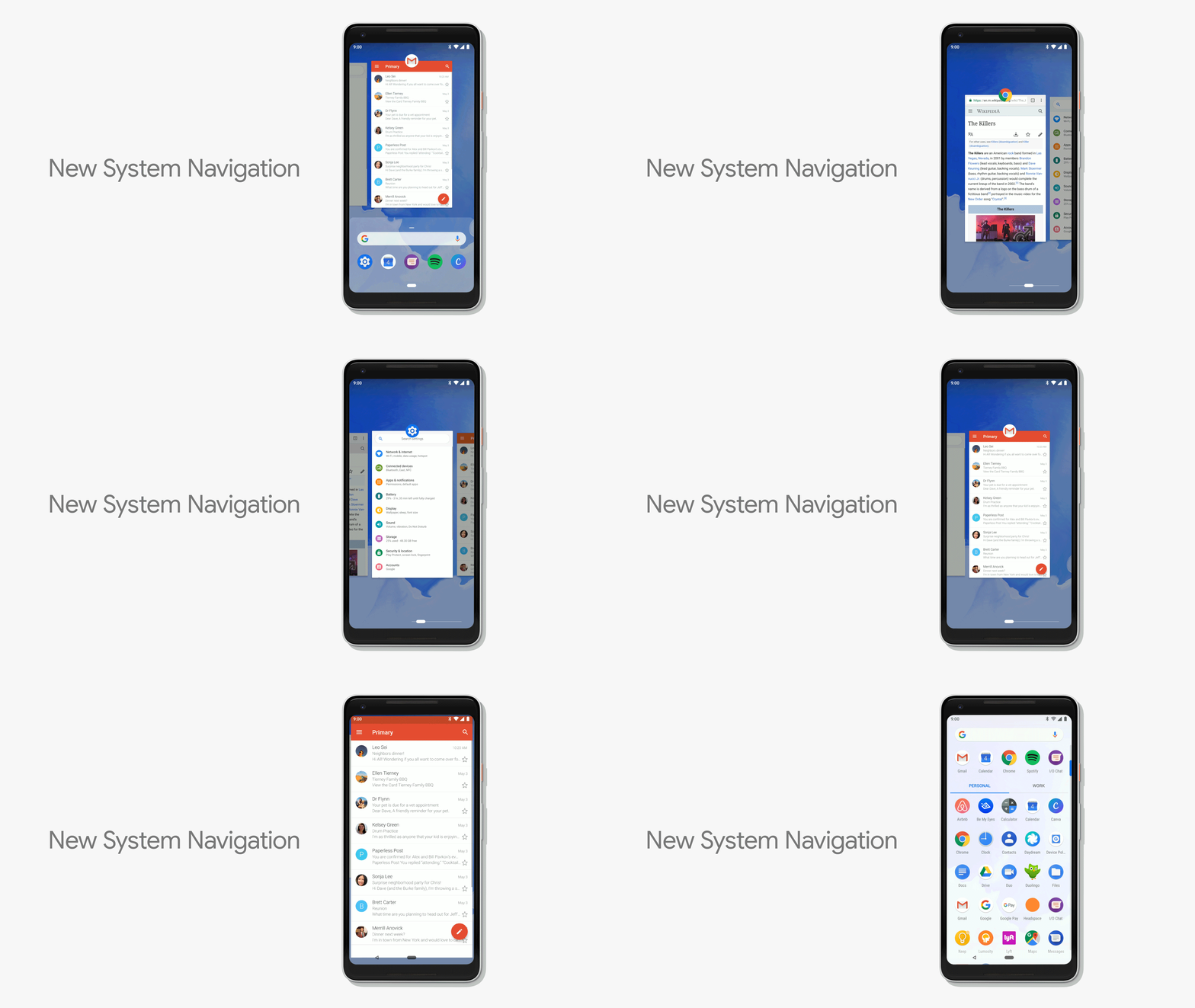
    • new system navigation
    • easier multi tasking
    • single clean home button and gestures
    • swipe up to overview, predicted apps
    • 2nd swipe up to all apps
    • swipe up anywhere
    • slide home button sideways to scroll through recent apps
    • back button shows up as needed
    • smart text selection and actions
    • volume control - simplified volume slider - default is media volume
    • rotation - lock rotation - unlock rotation button shows up when you rotate phone instead of auto rotate
    • better screenshots
    • better notification management https://techcrunch.com/2018/05/08/android-rolls-out-a-suite-of-time-management-controls-to-promote-more-healthy-app-usage/
    • lessen distractions
    • disconnect, balance life and technology
    • understand your habits - dashboard on how you are spending your time on device
    • meaningful engagement
    • Do Not Disturb mode - block visual notifications. 
    • Shush - turn your phone over on the table and it automatically goes to DND
    • Starred Contacts - allow them in even if DND is turned on.
    • Wind Down mode - tell GA when you want to go to bed - when that time arrives, it turns on DND and then gray theme screen to help you wind down and go to sleep.
    • 100's of improvements in Android P, including Security
    • Android P Beta - available on Pixel and 7 flagship devices, today
  • Maps https://www.blog.google/products/maps/explore-around-town-google-maps/
    • using AI to expand Maps
    • over 220 countries are mapped
    • 1B+ users
    • smarter and more detailed
    • automatically add new businesses and buildings from street view and satellite
    • business hours, wait time, etc
    • parking info
    • different routes based on mode of transport
    • more accurate traffic predictions
    • get more done
    • what's happening around you
    • uses your info and interests to find things you care about
    • new tab - For You - new things near you, trending info, activities, places and more
    • Your Match - score based on other things you liked to show you how something matches to your likes
    • Planning with others - pick a place together - long press on a place to add it to a short list - share the list with friends to get their preferences and they can vote or add their own places. 
    • Helping Small Businesses get discovered
    • daily posts on events or offers from favorite places
    • mapping the world (15 years old)
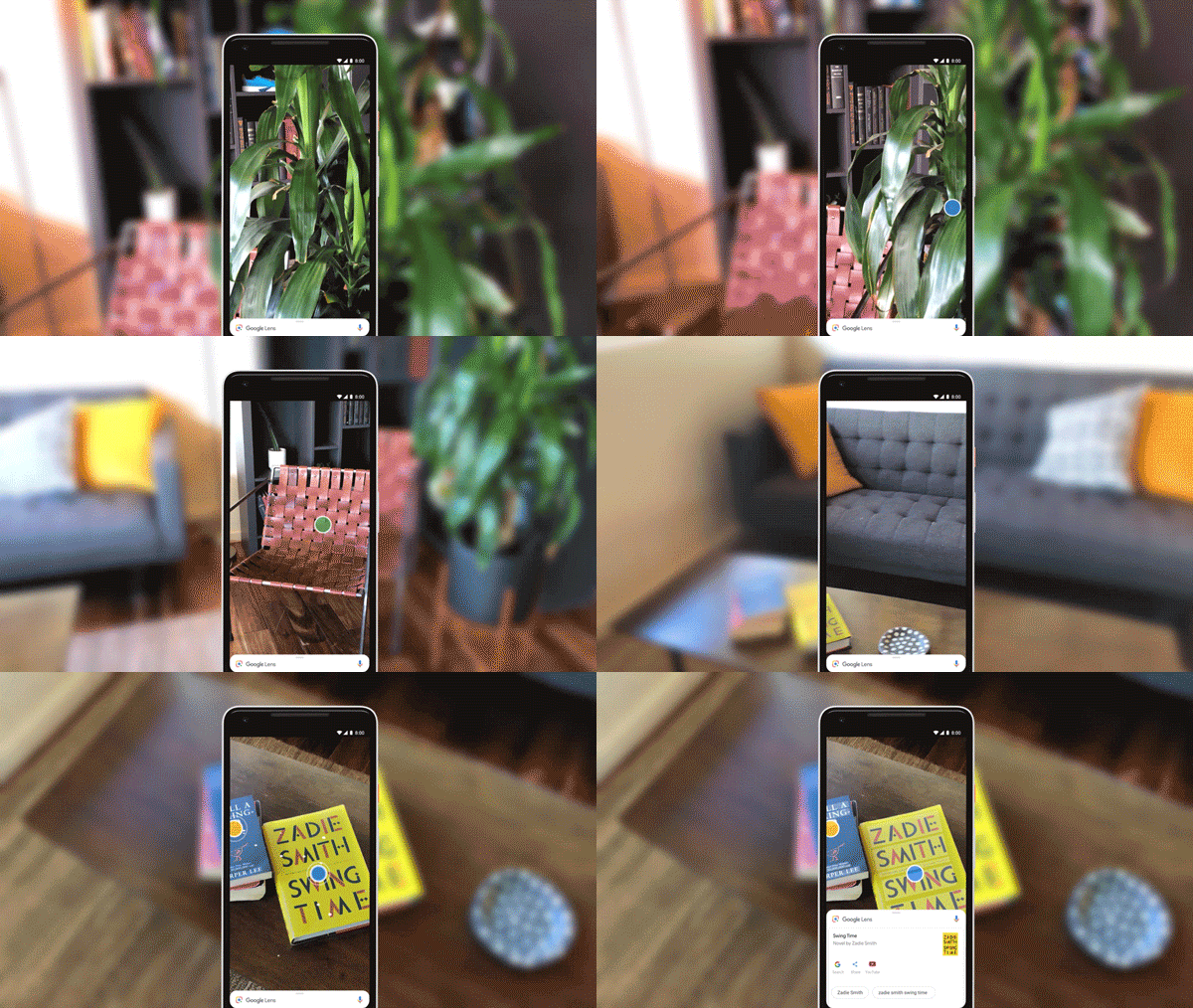
lens_multielements_050718 (1).gif
  • Camera in smartphones https://www.blog.google/products/google-vr/google-lens-real-time-answers-questions-about-world-around-you/
    • AI and computer vision
    • use camera to answer questions - where am I going, what's that in front of me?
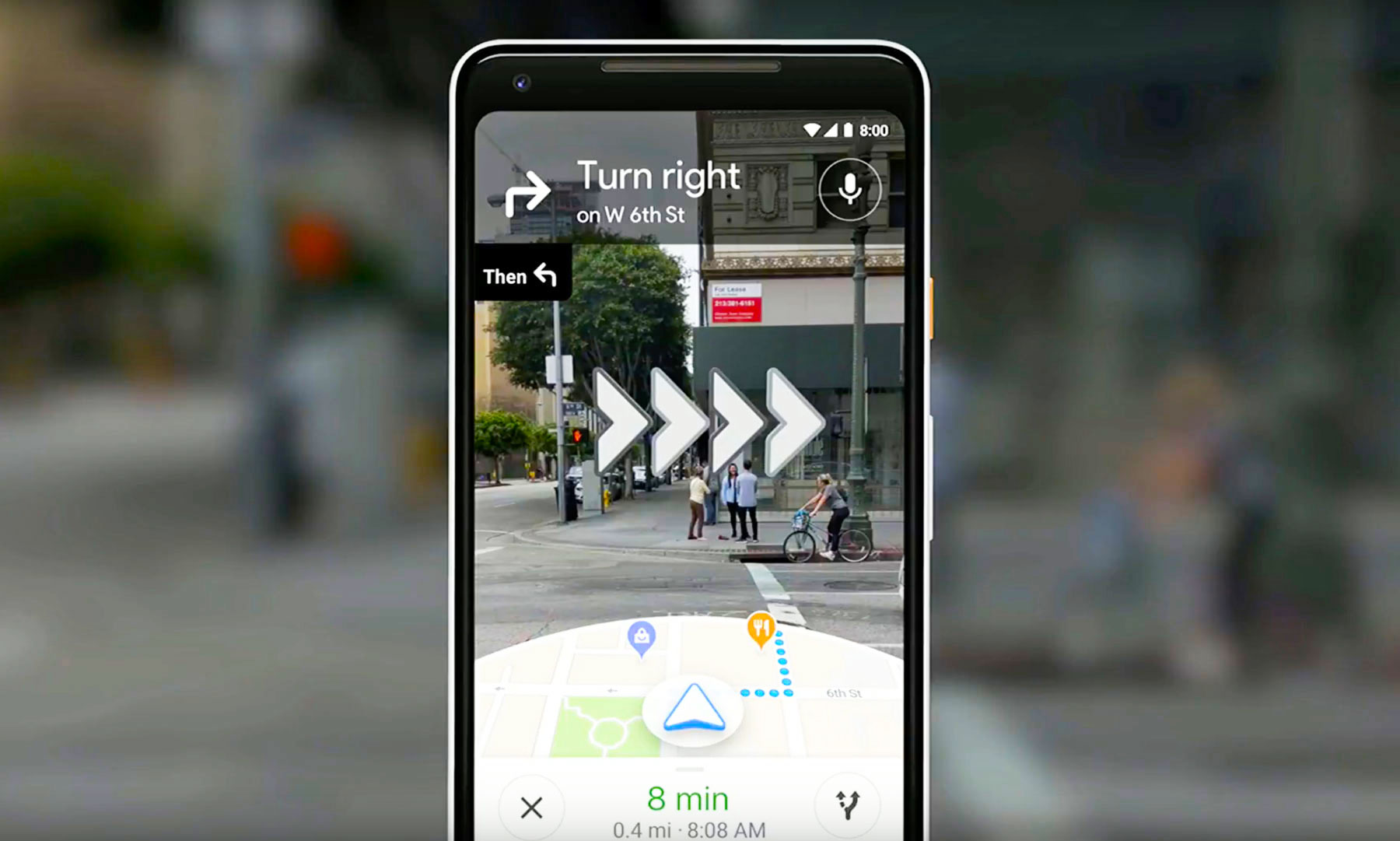
    • use camera and street view and maps to reinvision walking navigation
    • Maps info over laid on camera view!
    • which way, places near by, a guide
    • VPS - visual positioning system - based on what camera sees - visual landmarks but more accurate. 
    • Google Lens
    • get info based on what camera sees 
    • available in GA and G Photos
    • and going right into Camera App on Pixel and flagship devices
    • 3 new features
    • Smart Text Selection
      • Recognize and understand words 
      • Copy and paste from camera to app - real words on page, sign, etc. 
      • select a word on a menu and it will show you what it is
    • Style Match 
      • what are things like this thing?
      • open camera, tap on item and get info and other things that match style
    • Real Time Results
      • open camera and Lens starts working instantly to get info for you
      • on device and cloud TPUs to power this
  • Self Driving Cars - Waymo https://waymo.com/
    • part of Alphabet
    • fleet of fully self driving cars on public roads
    • people are already trying it out in Phoenix
      • Waymo early rider program
    • 100x reliability and safety
    • AI - perception and detection
      • finding objects and pedestrians and then avoiding them
      • adapting to things like a car going fast even though red light is coming up
      • adapting to weather like snow
      • safer than human drivers

Amazing things coming!!!
So cool it feels like Science Fiction!

Image result for science fiction


---

Monday, March 19, 2018

New Training Courses from Google - DigCit and Accessibility

google for education logo

Google has some great resources for educators at the Google for Education Training Center. Included are courses on Chromebooks, becoming a Trainer, and Fundamentals and Advanced training for using G Suite in the classroom.

They recently added two new courses that are very relevant to educators. Like the other courses, they are easy to use and excellent materials.

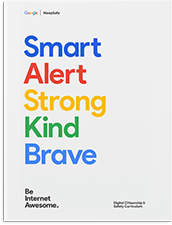
The Digital Citizenship and Safety Course helps teachers learn how to help their students stay safe online and become responsible digital citizens.

The Tools for Diverse Learners Training helps teachers learn how to use the accessibility features in Chromebooks and G Suite to help their students succeed.

Take a look at these two new courses, as well as the rest of the training center, and see how they can help you help your students.


Related:

Google for Education Resources 


Our Blog

55 Cups
Average weekly coffee drank
9000 Lines
Average weekly lines of code
400 Customers
Average yearly happy clients

Our Team

Tim Malkovic
CEO
David Bell
Creative Designer
Eve Stinger
Sales Manager
Will Peters
Developer

Contact

Talk to us

Lorem ipsum dolor sit amet, consectetur adipisicing elit. Dolores iusto fugit esse soluta quae debitis quibusdam harum voluptatem, maxime, aliquam sequi. Tempora ipsum magni unde velit corporis fuga, necessitatibus blanditiis.

Address:

9983 City name, Street name, 232 Apartment C

Work Time:

Monday - Friday from 9am to 5pm

Phone:

595 12 34 567